
Introduction
As developers, we spend countless hours in our IDEs. Ideally, these should be both visually appealing and easy to navigate without excessive scrolling or clicking. However tools like Nx often add a slew of boilerplate files that clutter the file tree. These files make developers new to Nx struggle with navigation across the project.
If you don’t know what Nx is, I highly recommend Luca’s comprehensive article which explains this powerful tool.
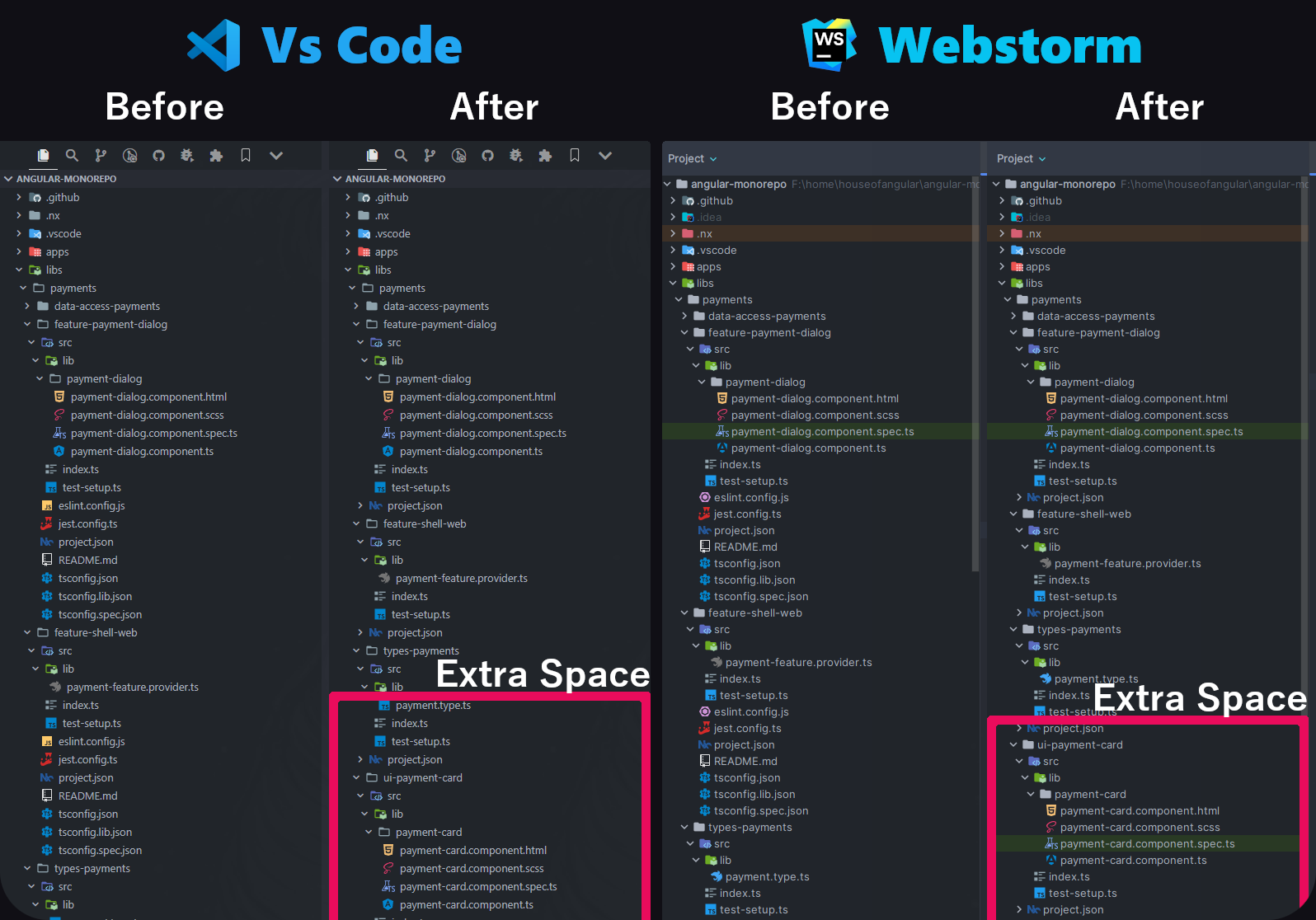
After reading this article you’ll learn how to declutter the file explorer view from boilerplate files and reclaim 30% of the explorer space. Just check the difference on the screenshot below! Whether you’re using VS Code or WebStorm, this guide is definitely worth your time.
Hiding Boilerplate Config Files
Let’s enhance our daily workflow by configuring our IDEs to hide boilerplate files. In this guide we will utilize File Nesting – a feature that allows related files to be collapsed under a primary file. We’ll use it to group boilerplate Nx files under project.json. This will make file explorer more appealing and easier to navigate through.
Configuring File Nesting for VsCode
To configure file nesting in VS Code, follow these steps:
1.Open User Settings (JSON):
- Press Ctrl + Shift + P (or Cmd + Shift + P on Mac) to open the Command Palette.
- Type Preferences: Open Settings (JSON) and select it.
2.Add File-Nesting Configuration: Append the following configuration to your settings.json file:
{
  "explorer.fileNesting.enabled": true,
  "explorer.fileNesting.expand": false,
  "explorer.fileNesting.patterns": {
    "*.ts": "${capture}.js",
    "*.js": "${capture}.js.map, ${capture}.min.js, ${capture}.d.ts",
    "*.jsx": "${capture}.js",
    "*.tsx": "${capture}.ts",
    "tsconfig.json": "tsconfig.*.json",
    "package.json": "package-lock.json, yarn.lock, pnpm-lock.yaml, bun.lockb",
    "project.json": "*.md, *.ts, *.json, *.js"
  }
}
This configuration enables the file-nesting feature for file types such as .ts, .js, .jsx, and .tsx. Our primary focus is on the project.json section, where we will collapse all .md, .ts, .json, and .js files under a project.json file – which is the heart of the Nx library.
After applying the configuration correctly and refreshing the explorer tree view, the boilerplate files should be collapsed under project.json as you could see in the screenshot at the beginning of the article.
Configuring File Nesting for Webstorm
I wouldn’t be myself if I’d forgot about something for webstorm users. Luckily webstorm also offers the file-nesting feature but it slightly differs from the vs-code experience as it requires more boilerplate in configuration.
To configure file nesting in Webstorm, follow these steps:
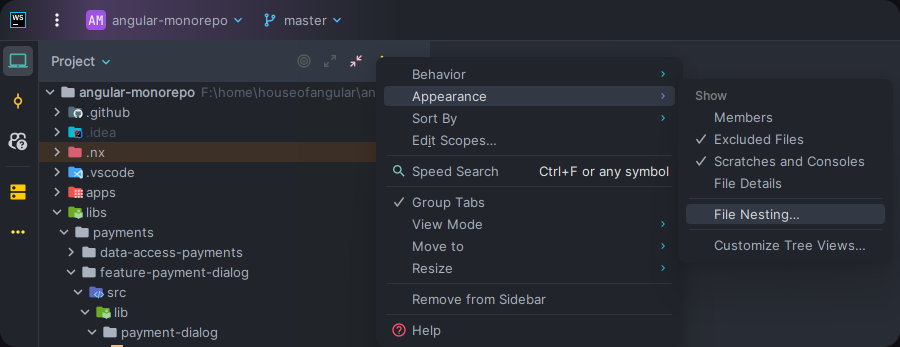
1.Open File Nesting Rules Dialog
-
- Go to the Project tool window (files explorer)
- Click on kebab menu (3 vertical dots)
- Select Appearance > File Nesting
2.Add File-Nesting Configuration
-
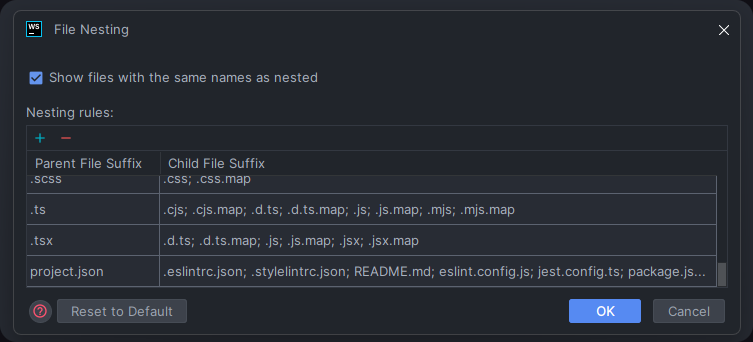
- Click on the plus icon to add new rule
- For Parent File Suffix use project.json
- For Child File Suffix use this value. (Note: you may want to add your boilerplate files if they’re not included here)
.eslintrc.json; .stylelintrc.json; README.md; eslint.config.js; jest.config.ts; package.json; tsconfig.json; tsconfig.lib.json; tsconfig.spec.json3.Save Changes by clicking OK
After applying the configuration correctly and refreshing the explorer tree view, the boilerplate files should be collapsed under project.json as you could see in the screenshot at the beginning of the article. In some cases, it may also be necessary to restart WebStorm for the changes to be fully applied.
Because the webstorm only applies file nesting rules to files with the same names we have to specify each boilerplate file individually – we can’t use regexp just like in case of the vs-code.
In case you want to learn more about file-nesting in webstorm check out this guide from JetBrains https://www.jetbrains.com/help/idea/file-nesting-dialog.html
Summary
I hope this guide has helped you declutter your IDE’s explorer tree, saving you valuable time by reducing unnecessary scrolling ?. This is my personal tip for making the IDE work better for me, and I hope it does the same for you. I’d love to hear your thoughts on this article, especially since it’s a bit different from the usual Angular-related content on angular.love. Let me know if there are other IDE topics you’d like to see covered in future posts!